
About
LS TV is an add-on for Lifestyle: smart TVs, projectors and screens you place in your house like furniture. Every TV runs LS TV, a smart TV home screen in the same look as the Lifestyle phone, and shows real websites through Lifestyle Link: videos, live TV, radio and more.
It's a separate mod: turn it on next to Lifestyle, or leave it off. It doesn't change anything in Lifestyle.
The home screen
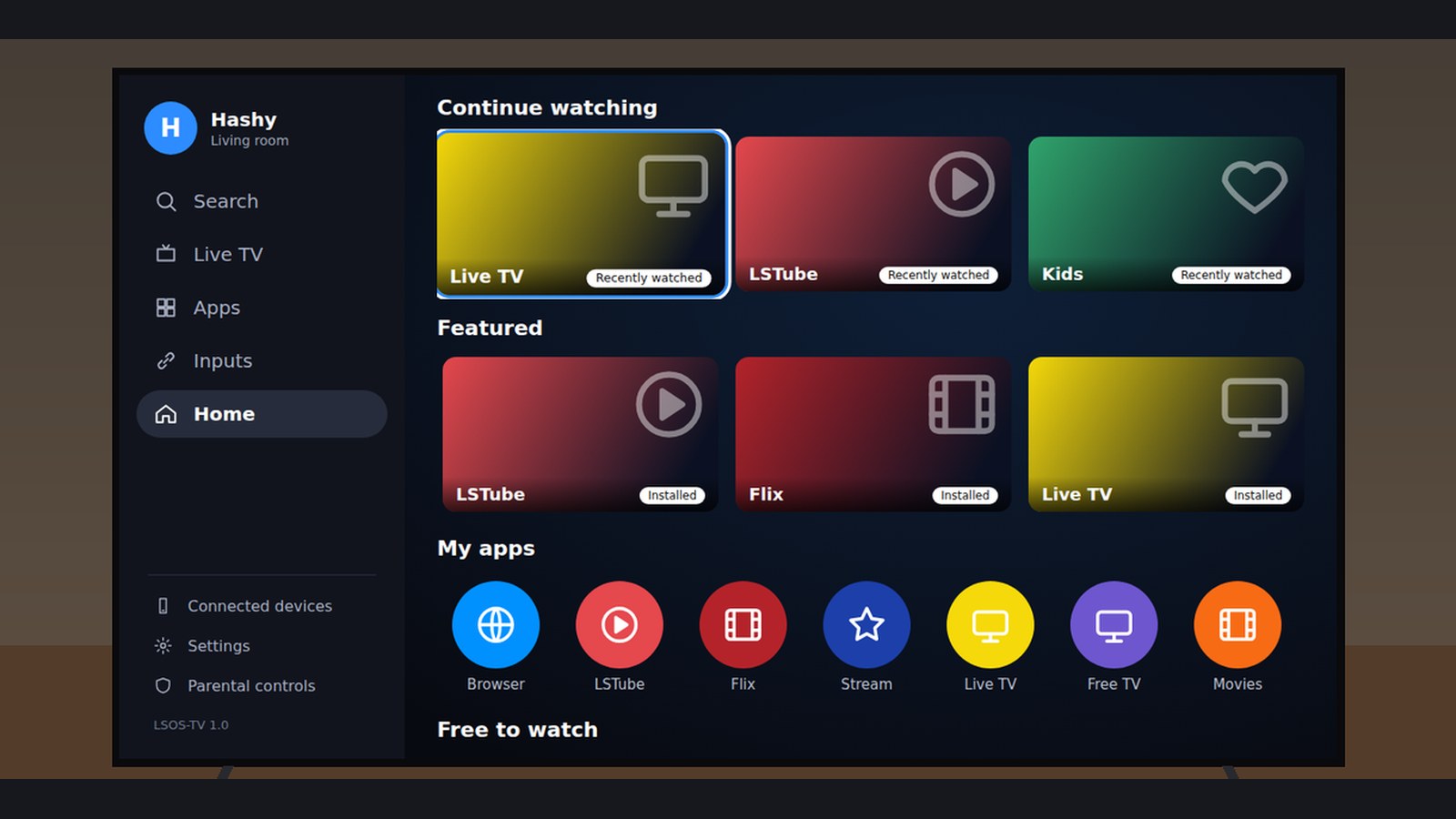
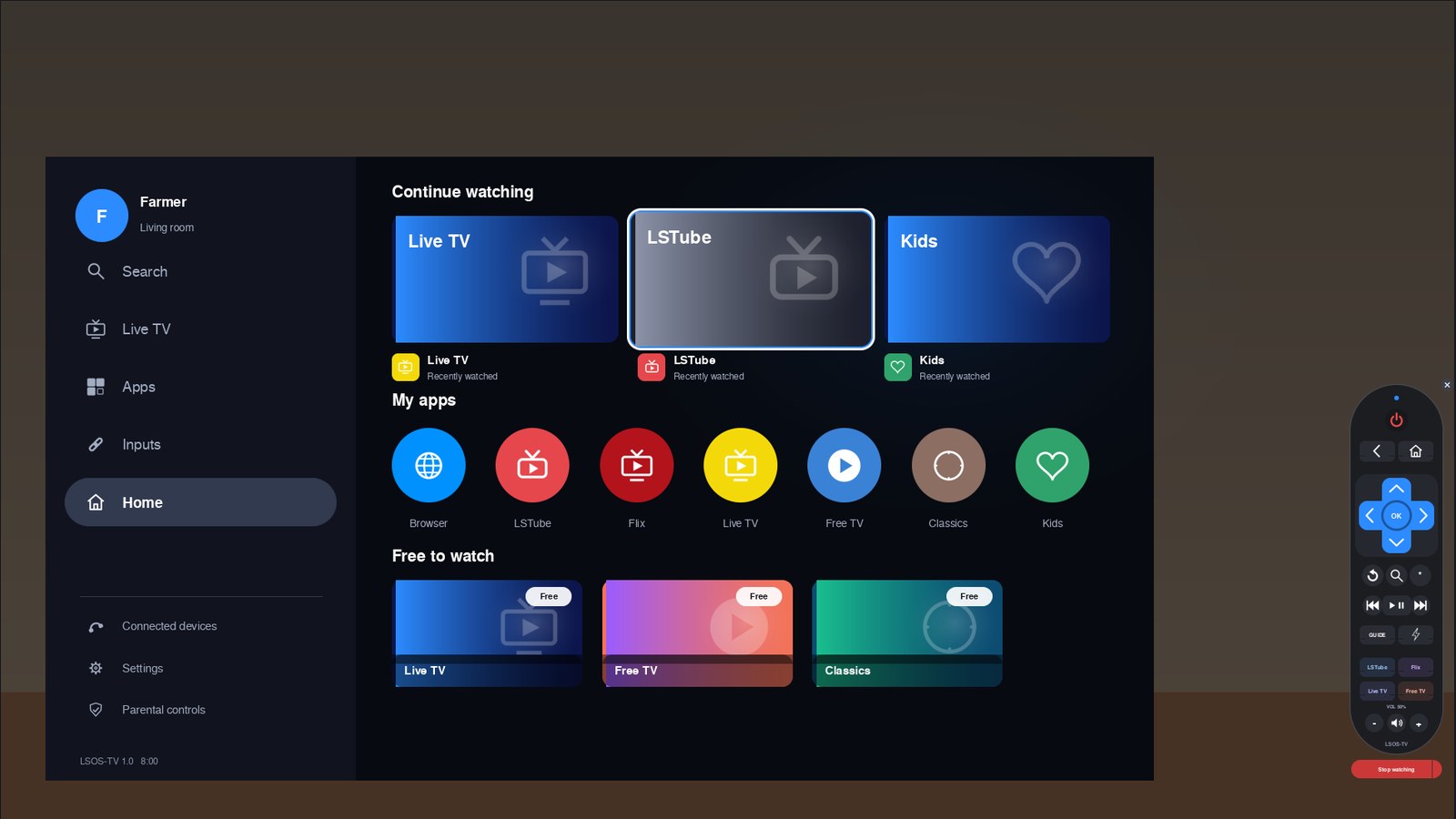
Turn a TV on or press Home and you get the LS TV home screen: a side menu (Search, Live TV, Apps, Inputs, Home), rows for Continue watching, Featured, My apps, Free to watch, Live channels and Listen, plus Connected devices, Settings and Parental controls. Pick an app and it opens right on the TV.
The remote
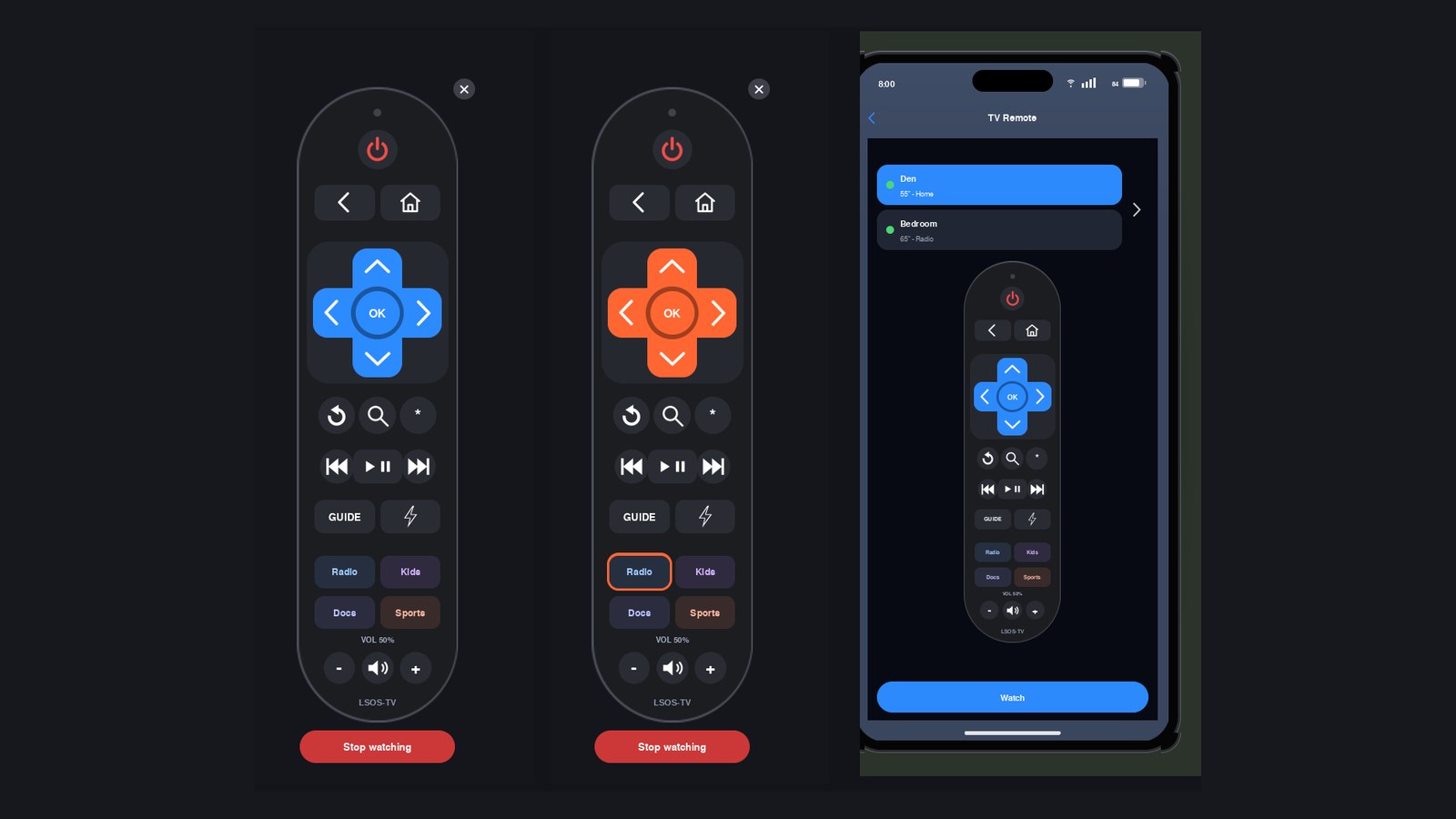
Use the on-screen remote (click its keys), a controller, or the TV Remote app on your LS phone. The phone app lists every TV on your farm, so you can turn one on, change the app or search from across the room. Settings > Remote shortcut 1-4 picks the apps on the remote's four app keys.
Watching
Walk up to a TV and press Left Alt + W. Your view moves to a seat in front of the TV, the HUD hides and the picture lines up on the screen. Press F for Big picture to fill the whole game window. Left Alt + W again (or Esc on the home screen) stops watching.
Up to 4 TVs at once
Several TVs can play at the same time, up to 4, each with its own page and sound. Sound gets quieter the farther you are, and the page pauses when you walk 15 m away or pause the game. Your LS phone and its browser keep working on top.
Placing inside houses
TVs go on the floor you're standing on, upstairs too, and a house never blocks them. The ground and grass are never changed. While placing, Page Up / Page Down move it higher or lower (hold Shift for small steps) and Home puts it back on the floor.
Projector and screens
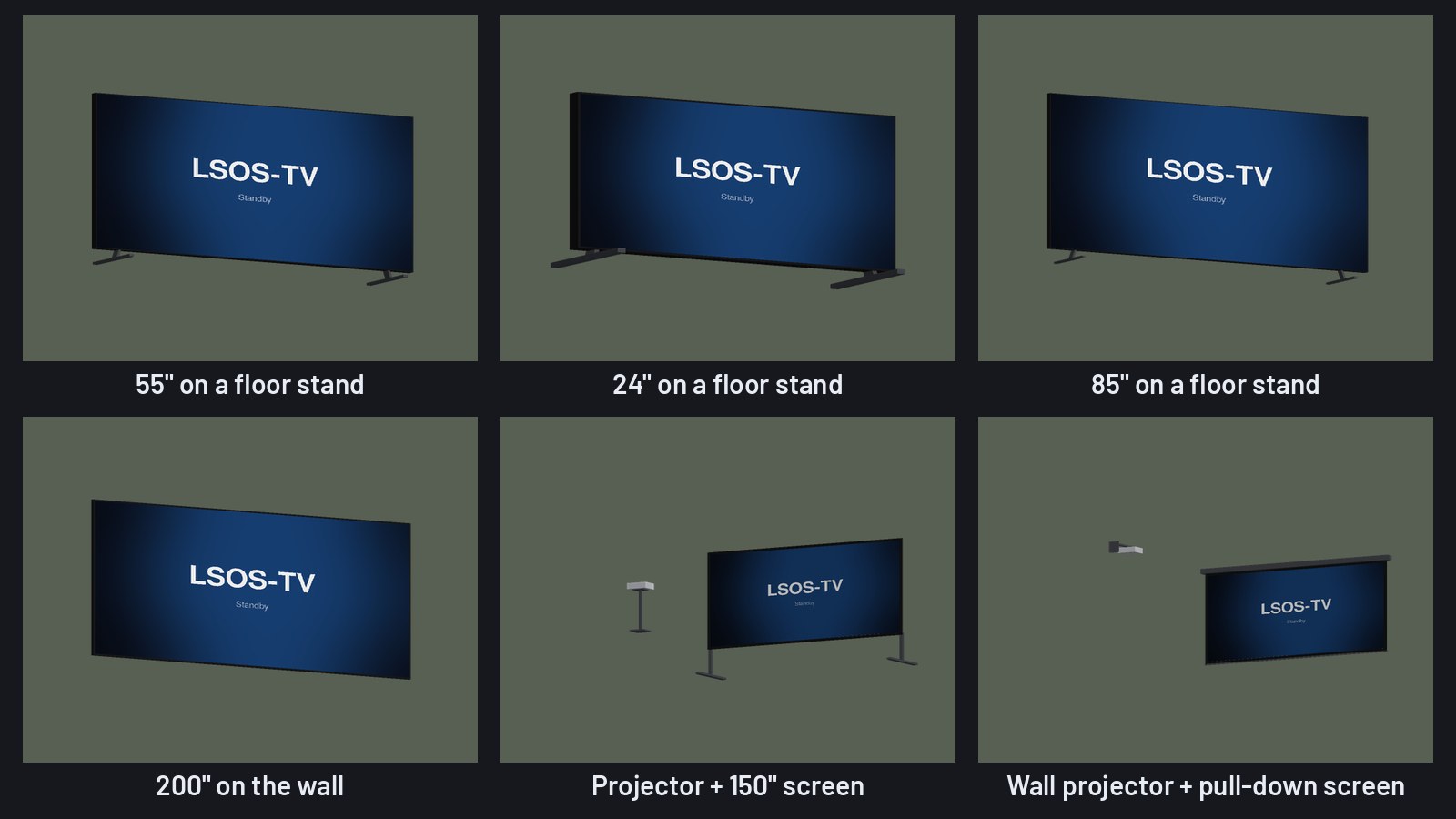
A projector on a stand, hanging from the ceiling or on the wall, and screens of 100", 150" and 200" on a stand or pull-down on the wall. Point the projector at a screen 4 to 6 m away and it lights it up.
Multiplayer
Every player watches on their own PC with their own Lifestyle Link. The TV's power, app and name are shared with everyone; pages, addresses and sign-ins are never shared.
Features
- TVs in 24", 32", 43", 55", 65", 75", 85", 100", 150" and 200", on a floor stand or on the wall
- Projector on a stand, ceiling or wall mount, plus 100", 150" and 200" screens
- 29 items in the shop under Decoration, at real sizes
- LS TV home screen: apps, continue watching, live channels, search and settings
- On-screen remote, controller and the phone's TV Remote app
- Watch mode (Left Alt + W) with Big picture (F)
- Websites use their full desktop / TV layout
- Up to 4 TVs playing at once, each with its own sound
- Sleep timer, volume, TV name and parental controls for each TV
- Placed like furniture, upstairs in houses too
- Saved with your savegame; works in multiplayer
How to install
- Put HS25_LSOS_TV.zip in your mods folder (Documents\My Games\FarmingSimulator2025\mods). Don't unzip it.
- Turn it on together with Lifestyle when you load your save.
- Run Lifestyle Link 3.38.1 or newer on the same PC, and set FS25 to windowed or borderless.
- In multiplayer, everyone needs the mod on.
How to use it
- Buy a TV, projector or screen in the shop (Decoration) and place it. Page Up / Page Down = higher / lower (Shift: fine), Home = back to the floor.
- Walk up to a TV and press Left Alt + W to watch. Left Alt + W again stops.
- While watching: arrows + Enter move around, Esc goes back, H = Home, - / = = volume, M = mute, Space = play / pause, Page Up / Page Down = next / previous app, F = Big picture, R = show / hide the remote, K = type into the page, P = power.
- More keys: J / L rewind / fast forward, U replay, I options, N search, G guide, Q quick launch.
- Controller: stick / D-pad, A = OK, B = back, Y = home, X = play / pause, LB / RB = volume, LT / RT = rewind / fast forward, View = the remote.
- Left Alt + O opens your phone while you watch. The phone's TV Remote app works from anywhere on your farm.
- All keys can be changed in Options > Controls.
Known limitations
- FS25 mods can't draw live video on a 3D object. The picture is a real browser window from Lifestyle Link lined up over the TV's screen, so it looks best from in front (watching puts you there).
- While you walk or turn, the picture steps aside and the TV shows "Now playing" (the sound keeps going). It comes back as soon as you stop.
- FS25 must run windowed or borderless.
- Only the TV you're watching gets the seat in front of it.
- The models are simple for now. Wall TVs don't snap to walls: place them against one.
- An older Lifestyle Link shows one TV at a time.
- Screenshots show the TV software and models; in-game pictures are coming.
Changelog
1.0.0.6
- Built-in TV spots: house and shop mods can mark a spot for a TV, and LS TV puts a working TV there by itself
- Mod makers: see FOR_MOD_MAKERS.txt in the zip
1.0.0.5
- Home (remote, H, controller Y, phone) always brings back the LS TV home screen
- Back on a site's first page goes home; a TV never starts on a search page
- Steady sound while watching; volume eases smoothly when you walk away
1.0.0.4
- Fixed: watching a TV only showed the animation, not the page
- The screen animation is sharper and no longer shows a grid
1.0.0.3
- New name: LS TV (it runs LSOS)
- The TV's picture now sits on its real screen at the angle you placed it, with a looping animation and a Now playing card
- Live TV: free channels and your own channel list, with a guide
- Nothing from the TV draws over the pause menu or the phone anymore
1.0.0.2
- A hand-held TV remote: buy it, hold it and point it at any TV
- The TV models load faster (no more slow-load warning)
1.0.0.1
- A full smart TV home screen right on the TV when you turn it on or press Home
- Smoother picture: no more choppy picture while you walk or turn
- Websites use their full desktop / TV layout instead of the phone layout
1.0.0.0
- First release: TVs from 24" to 200", projectors and screens, the remote, watch mode and the phone's TV Remote app